Playlist Playback: Community Screenings Made Simple
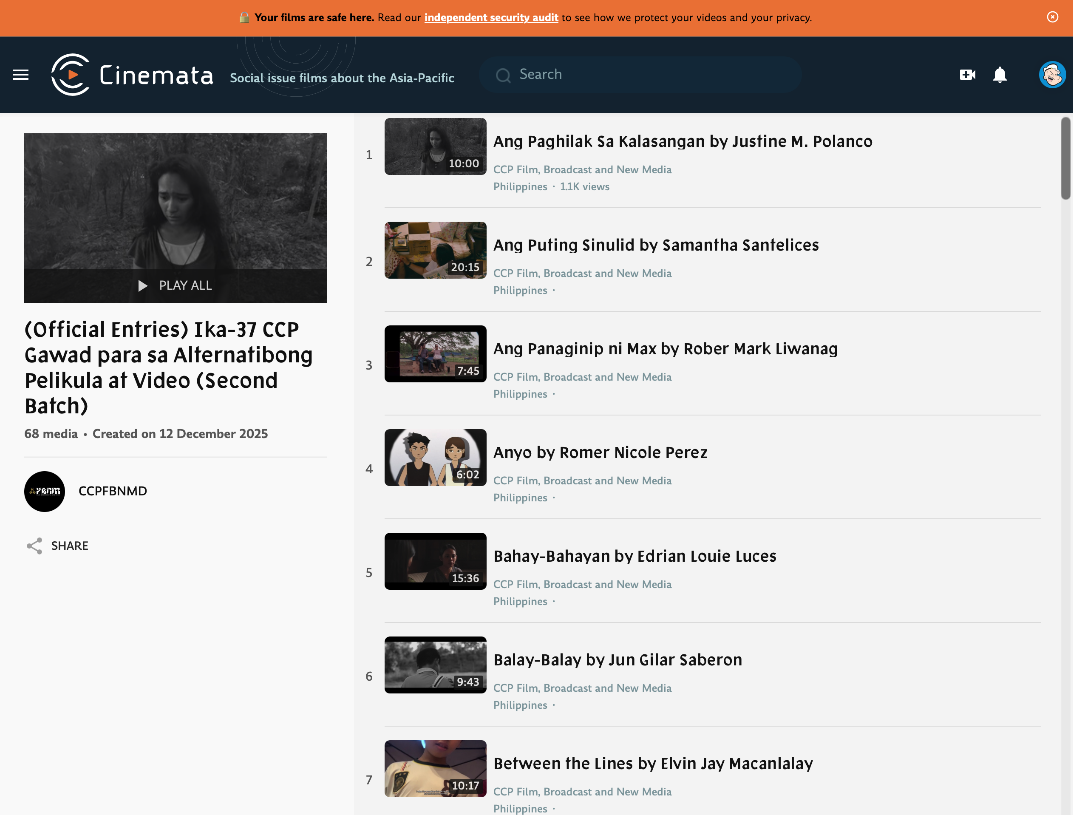
Designed for Advocates and Educators
At Cinemata, playlists are more than video queues—they're curated film experiences for community screenings, educational workshops, and advocacy campaigns. Curators sequence films intentionally to build understanding, spark dialogue, and inspire action.
Our goal is seamless, cinema-like viewing. However, browser security requires exiting full-screen when switching between videos (to prevent malicious sites from trapping users). We've optimised everything else to minimise disruption: lightning-fast transitions, one-tap fullscreen return, and automatic playback that never loses your place in the sequence.
Enable Autoplay for Seamless Viewing
Cinemata's playlist flow relies on your browser allowing autoplay, so each film begins automatically after a transition. If autoplay is blocked, you'll need to manually press play each time a new film loads — interrupting the curator's intended flow.
Most browsers will allow autoplay once you've interacted with the page — pressing Play All is usually enough. If films still don't start automatically, here's how to allow it for Cinemata specifically:
- Chrome: While on any Cinemata video, click the lock icon (or the info icon) to the left of the address bar → Site settings → find Sound and set it to Allow.
- Firefox: Click the lock icon in the address bar → Connection Secure → More Information → Permissions → uncheck Block Autoplay.
- Safari: Go to Safari menu → Settings → Websites → Auto-Play → find cinemata.org and set it to Allow All Auto-Play.
- Mobile browsers: If films don't start automatically after pressing play, try tapping the screen once during the transition — this signals to the browser that you're actively engaging, which usually unlocks autoplay for the rest of your session.
Before Your Screening: Check Your Connection
For smooth playback—especially at 1080p—test your internet speed before hosting a watch party or screening. Here's how:
Quick Speed Test
Visit Speedtest.net and click "Go." Your download speed determines streaming quality:
| Video Quality | Minimum Speed Requirement |
| 480p (Standard) | 1.5–3 Mbps |
| 720p (HD) | 3–5 Mbps |
| 1080p (Full HD) | 5–8 Mbps |
Tip: Your actual streaming speed may differ from the test result. However, we use Cloudflare to cache videos closer to you—especially across Southeast Asia. If your speed test shows borderline results (e.g., 6 Mbps for 1080p), consider using 720p for more reliable playback.
Pro tip for screening hosts: Watch the films in your playlist a day or a few hours before your event. This ensures the videos are cached on the Cloudflare server nearest to your location (called a "POP"), resulting in faster loading for everyone at your screening. Popular playlists are likely already cached, but previewing ensures they are.
Test Directly on Cinemata (Advanced)
For the most accurate results, you can check how fast videos actually load from Cinemata using your browser's built-in tools:
- Open any video on Cinemata in Chrome
- Right-click anywhere on the page and select Inspect (or press
Ctrl+Shift+Ion Windows /Cmd+Option+Ion Mac) - Click the Network tab at the top of the panel that appears
- Start playing the video at your desired quality (e.g., 1080p)
- Watch the entries appear in the Network tab—look for files ending in
.m4sor.ts(these are video chunks) - The Time column shows how long each chunk takes to download. If chunks consistently take longer than a few seconds, or if you see buffering, switch to a lower quality
Simple rule: If the video buffers or pauses within the first minute at 1080p, switch to 720p for your screening.
How It Works
1. Start Your Playlist
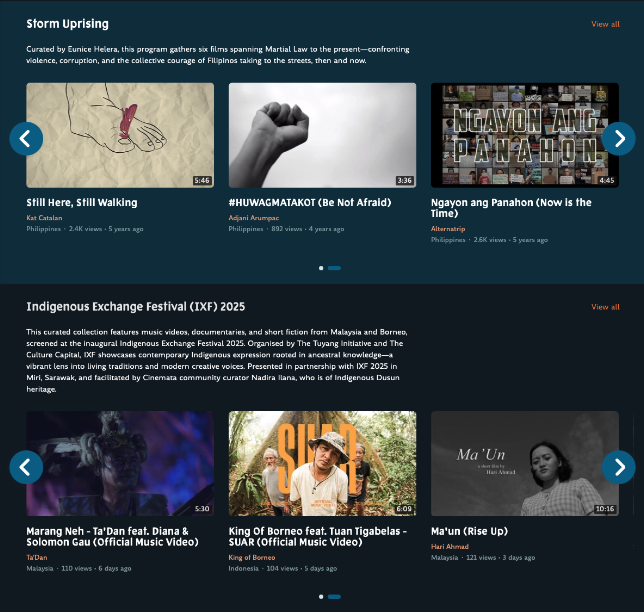
Access playlists from:
- Home page: Featured collections curated for impact
- Playlists page: Browse by theme, region, or issue
2. Choose Your Entry Point
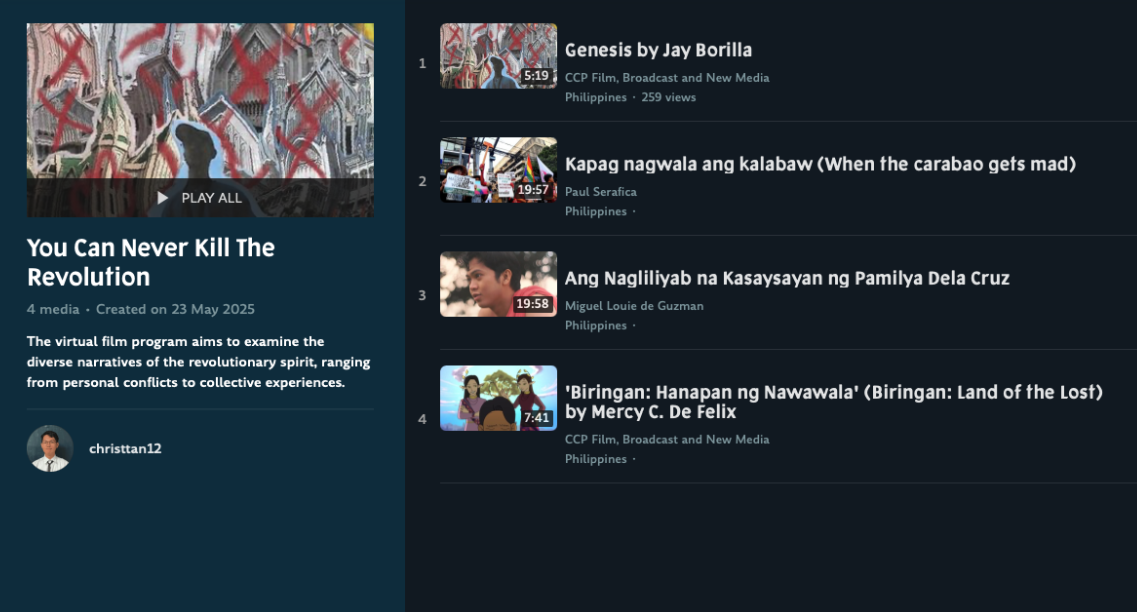
Press Play All to begin from the start, or select any video to jump into the collection. Both activate playlist mode—your guide through the curator's vision.
3. Watch in Fullscreen
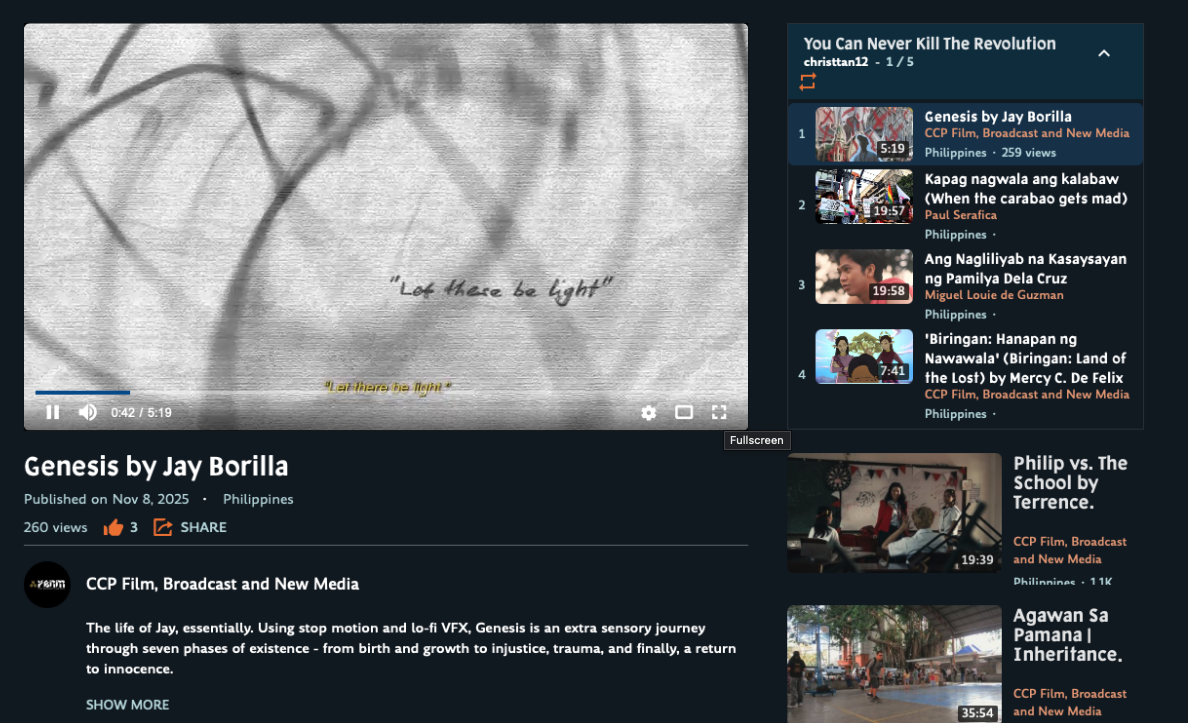
Playlist mode activates automatically. Click the fullscreen icon for immersive viewing—perfect for community screenings and classroom settings.
4. Flow Between Films
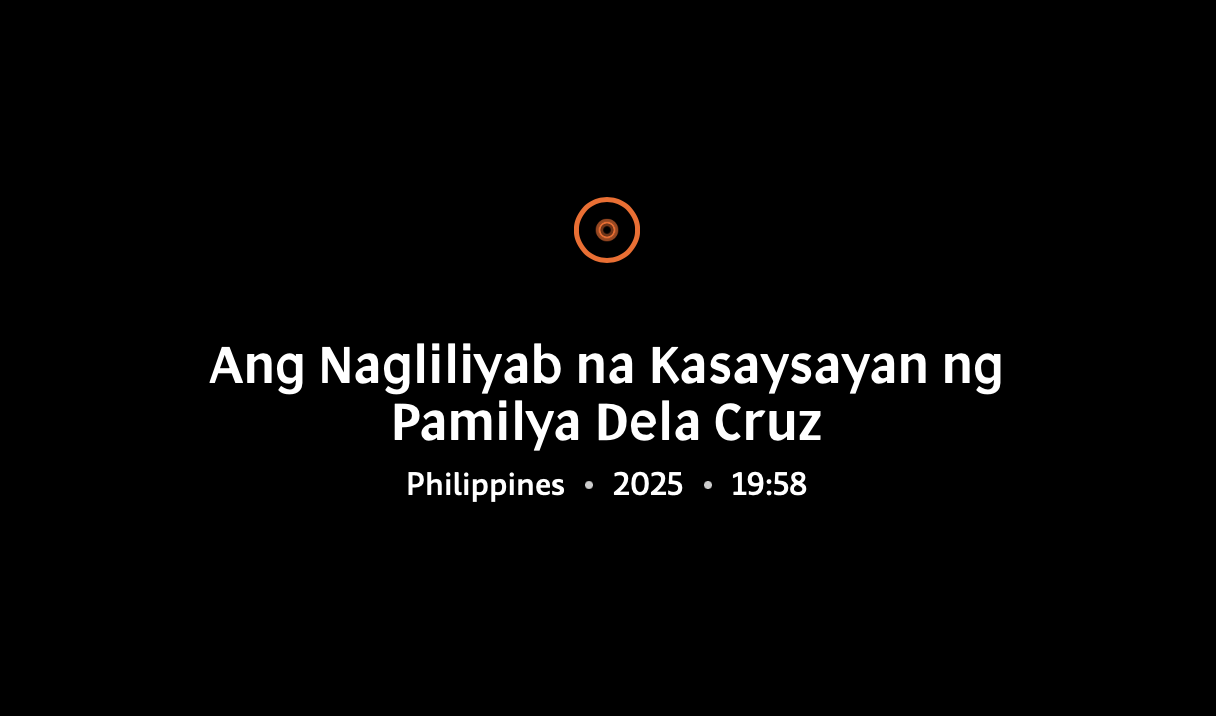
As each film ends, a transition card (3-5 seconds) shows what's next.
5. Stay Immersed
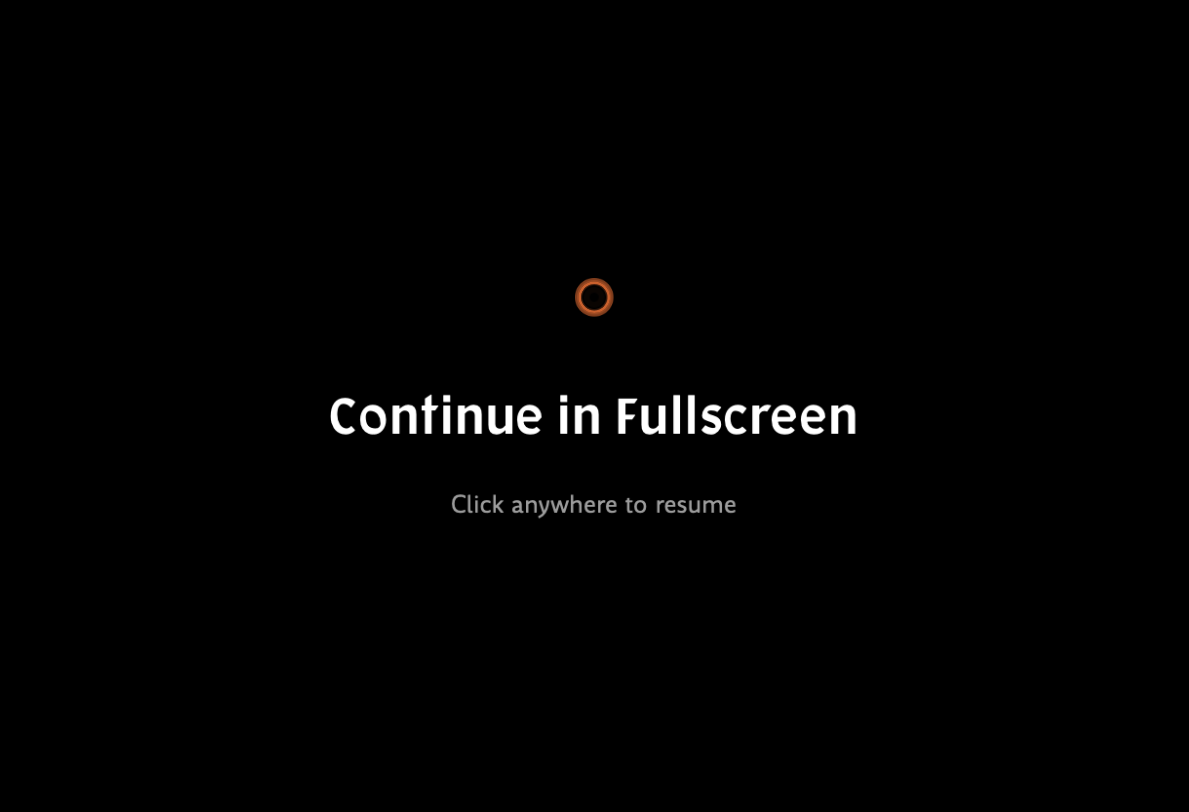
Due to browser security, full-screen exits briefly during transitions. One tap on the screen or pressing Enter returns you to fullscreen—no hunting for buttons.
6. Complete the Journey
After the final video, you are automatically returned to the playlist page. Share your experience, explore related collections, or dive into a discussion.
Built for Impact
This flow supports how advocacy films are meant to be experienced: collectively, contextually, and purposefully. Whether you're hosting a screening in Manila, teaching in Dhaka, or organising in Jakarta, Cinemata's playlist playback creates space for the human moments that make film a tool for social change.
Questions about community screenings or educational programs? Contact our team—we support advocates and educators using film for change.